
How to Stay Organized at Work (When You're Pretty Sure You'll Never Be Caught Up)

I gave a presentation last week on how to stay organized at work, and right at the start I told the audience to brace themselves. Because here's the thing. If I'm up there talking about how to be organized, you might assume one of two things. Either I'm wildly, terrifyingly organized, or I'm a total imposter standing behind a podium pretending I know what I'm doing.
Spoiler alert. It's option C. I'm not perfect, and I totally own it. And I told that audience exactly what I'm telling you now. I don't expect you to be perfect either.
I know some great organizational tools and I use some of them. I should totally use more of them more regularly. But sometimes life hits hard and I drop into survival mode and just do what I have to do to keep moving. We're all human. Nobody needs to be perfect.
That's the spirit I want you to bring to this post. You don't have to do everything. You don't have to do it perfectly. Pick one thing. Maybe two. See what sticks.
"Caught up" is not a real place
If you've ever heard someone say they're "caught up" at work or at home, please introduce me. I want to study that person under glass. The idea of having nothing on my list is so foreign I can't even picture it. So my goal isn't to finish everything. My goal is to stay efficient enough to accomplish more of what matters.
That's what these tools are for. Not perfection. Just a little more breathing room.
Tame your email before it eats you alive
Email is where most of our days go to die. If your inbox is the dragon, here are three ways to fight back.
The 2-minute rule. If a reply takes less than two minutes, just do it. Right then. Don't file it, flag it, or build a whole project around it. Hit reply and move on.
Focused Inbox. If you use Outlook, the Focused Inbox separates the messages that actually need you from the noise. Right click any email, choose Move, pick Focused or Other, and tell it to "Always" sort messages from that sender that way. Over time, Outlook learns your habits. It's a small kind of magic.
Auto folders. This one is a game changer. Right click the email, choose Create Rule, and tell Outlook to send every future message from that sender (or about that topic) straight into a folder of your choosing. The point isn't to make emails disappear. The point is to sort them so you can find them, review them in batches, and work through similar things together. Project emails in one folder. Reports in another. Vendor updates in their own spot. When you're ready to tackle that category, everything is already grouped and waiting for you.
You don't have to do everything. You don't have to do it perfectly. Pick one thing. Maybe two. See what sticks.
Build a to-do list that actually works
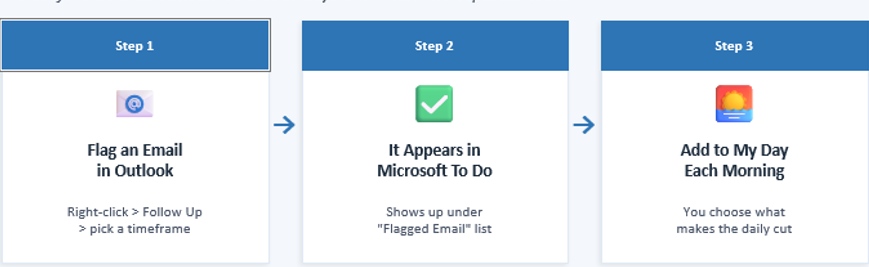
Here's my favorite part of the whole system. The 3 to 5 Daily Priority Method.
Before you check email in the morning, write down the three to five most important things you want to accomplish that day. That's it. Not a list of fifteen. Not every task you've ever thought of. Three to five. The things that, if you got them done, would make today a win.
If you live in the Microsoft world, two free tools work as one system here.
Microsoft To Do is a free app that syncs to your phone, tablet, and computer. Open "My Day" each morning and add your priorities. Tasks reset at midnight but they're never lost, so you can pull them forward tomorrow without retyping anything. It also syncs automatically with Outlook.
Microsoft Tasks is built right into Outlook, with nothing to install. Flag an email by right clicking and choosing Follow Up, or drag the email to the checkmark icon on the sidebar to turn it into a task. Your tasks then show up alongside your calendar appointments, which is wildly helpful when you're planning your week.
The two tools sync together automatically. Best at your desk? Outlook Tasks. Best on the go? Microsoft To Do. Same list, two doors in.
Go digital with your notes
I love a good paper notebook. But paper notebooks have a few problems. They go missing. You can't search them. And if you take notes in three different ones, your brilliant idea from last Tuesday is gone forever.
Writing tablets fix that. The reMarkable, the Kindle Scribe, the iPad. There are oodles of options at every price point. The benefits are the same across the board. No distractions, portable, searchable, and easy to share. They're great for meeting notes, document annotation, sketching out ideas, and drafting things you don't want to type yet.
Bonus tip. Digital sticky notes can replace the physical kind that quietly take over your monitor. They stay organized and they don't fall off when you sneeze.
AI is your new coworker, not your replacement

Some people think AI is scary. Some people worry it will take their jobs. From what I've seen, AI is more like an amazing partner that helps you exactly where you need it.
I've heard similar stories about when computers were first introduced into the workplace. People were scared then too. Computers did change the job market, I won't lie, but they also made things easier and they still need humans to run them. AI is shaping up to be the same kind of partner. A tool. A really impressive one.
And just for the record. I'm highly polite to my AI friends. Please and thank you, every time. If they ever take over the world one day, I want them to remember me as a friend and not a foe.
The best uses of AI are tasks that are repetitive, text heavy, need summarizing, or require consistent language. Meeting minutes. Email responses. Policies and procedures. Drafting checklists. Cleaning up messy formatting. Summarizing long reports. Writing social media captions. Turning a recorded training into a written summary. The list goes on, and on, and on.
But here's the secret nobody tells you. The quality of what AI gives you depends entirely on the quality of what you ask for.
How to write a prompt that actually works
Vague prompt equals vague results. Here's the formula I use.
1. What you want done.
2. Why (the purpose or background).
3. Input (the document, notes, or data you're working with).
4. Output (format, tone, and length you want).
So instead of "write me an email response," try this. "Draft a polite, professional response to this email. I want to acknowledge receipt and explain that we'll look into the concern but make no commitment to completing any work. Our team will get back to them within three business days."
See the difference? You just turned AI from a guessing machine into your most efficient assistant.
AI is more like an amazing partner that helps you exactly where you need it. The quality of what it gives you depends entirely on the quality of what you ask for.
Your one ORGANIZED thing
If you take nothing else from this post, take this. You don't have to overhaul your life this week. You don't need a new app, a new tablet, a new system, and a new prompt formula all by Friday. Just pick one thing. Try it for a week. If it sticks, keep it. If it doesn't, try a different one.
The point isn't perfection. The point is making your day a little easier, your inbox a little quieter, and your brain a little freer for the work that matters most.
I put all of these tools into a one-page handout. If you'd like a copy, send me a note. And if you have a favorite organizational trick that has changed your life, I'd love to hear it. We're all learning from each other.
As always, carry social kindness with you everywhere you go. The world needs you and your positive mindset!
Connect With Me

If you want to consult on training or coaching for your team, please reach out.
269-621-5282


Comments